
On this page
Passwords leak. Old forum databases get dumped, people reuse the same password everywhere, and phishing pages get better every year. Two-factor authentication (2FA) means a stolen password alone is useless: signing in also needs a six-digit code from an app on your phone. On Thpaste it's free, takes about two minutes, and works with the authenticator app you probably already have.
Turn on 2FA, step by step
Go to your dashboard → Account → Security and press Set up two-factor.

- 1Install an authenticator app
Google Authenticator, Microsoft Authenticator, Authy or 1Password all work. Any app that supports standard time-based codes (TOTP) will.
- 2Scan the QR code
Or, if you're on the same phone, open the setup link directly in your app or type the key shown under the QR code.
- 3Enter the 6-digit code
This proves your app saved the secret. Until you do, nothing changes — you can cancel safely.
- 4Save your recovery codes
Thpaste shows ten one-time codes. Store them in a password manager or print them. They're your way back in if you lose your phone.
Save the recovery codes now
They're shown once. If you lose your phone and your recovery codes, getting back into your account becomes much harder — so put them somewhere safe before you leave the page.
What signing in looks like afterwards
- Enter your email and password as usual.
- Thpaste asks for the 6-digit code from your app.
- Type it (or one of your recovery codes) and you're in.
The step between your password and your code is short-lived on purpose: the half-signed-in browser only holds a temporary marker for ten minutes, never a real session.
How Thpaste protects the second factor
The secret your app uses is stored encrypted, so a copy of the database alone can't generate your codes.
Each code works once. Someone who sees you type a code can't reuse it.
Recovery codes are stored as one-way hashes, and each one is crossed off when used.
Guessing codes is throttled, so brute force gets nowhere.
Lost your phone? Use a recovery code
At the code prompt, type one of your ten recovery codes instead. Each works once. Once you're back in, go to Security and either:
- press New recovery codes to get a fresh set (the old ones stop working), or
- turn two-factor off and set it up again on your new phone.
Both actions ask for a current code or a recovery code, so nobody who briefly gets hold of your unlocked laptop can quietly switch 2FA off.
The rest of the Security page
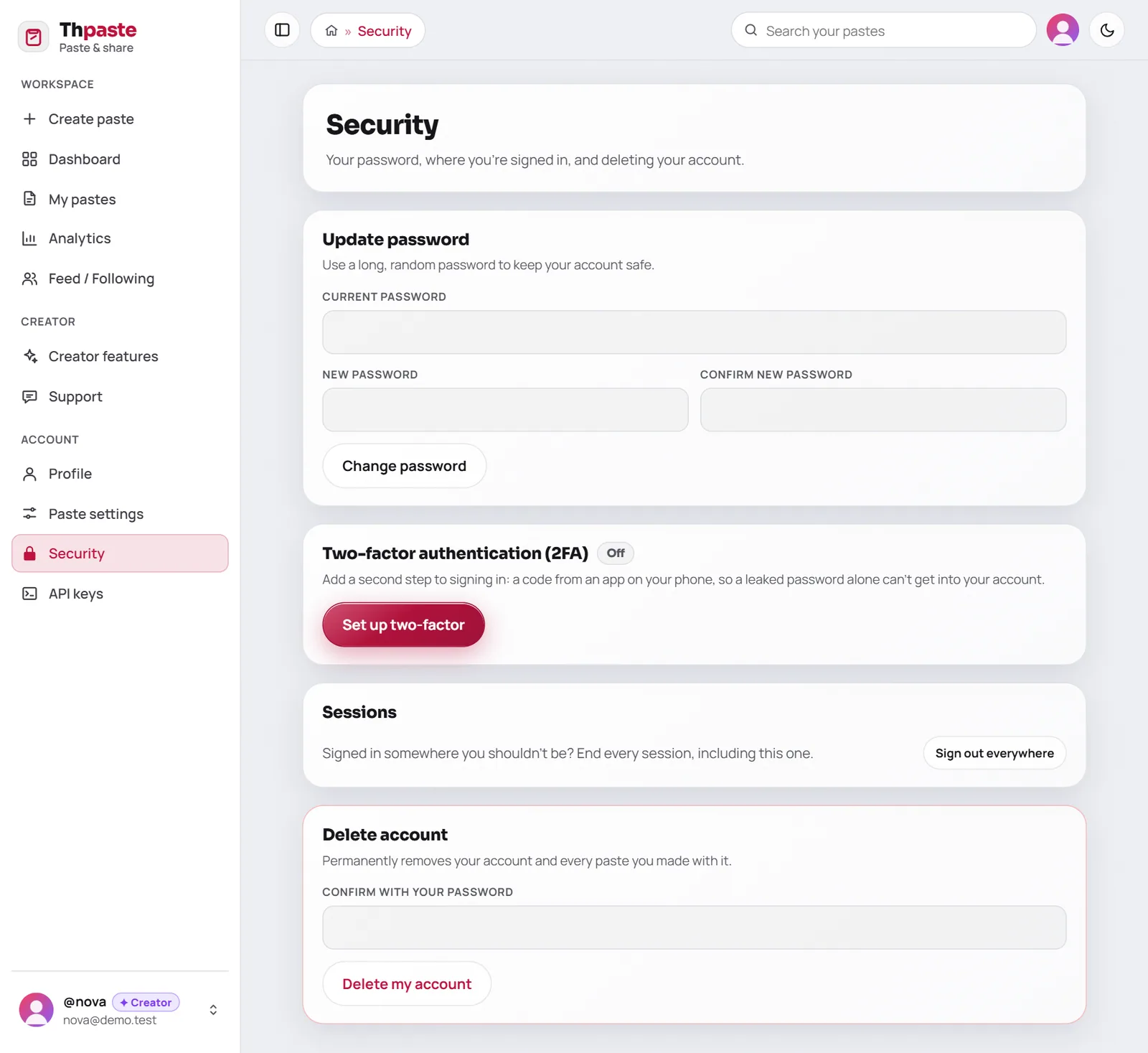
| Section | What it's for |
|---|---|
| Update password | Change it any time — at least 8 characters, longer is better |
| Two-factor authentication | Set up, new recovery codes, or turn off |
| Sessions | Sign out everywhere ends every session on every device, including this one |
| Delete account | Permanently removes your account and every paste you made with it (asks for your password) |
If something feels off
Change your password and press Sign out everywhere. Anyone who was signed in on another device is kicked out immediately.
A quick security checklist
- Use a unique password (a password manager makes this painless)
- Turn on two-factor authentication
- Store your recovery codes somewhere safe
- Use password-protected or burn-after-reading pastes for anything sensitive
- Keep API keys on servers only, and revoke any you no longer use
FAQ
Is 2FA required?
No, it's optional — but strongly recommended, especially if you have a public profile or Creator Mode.
Does 2FA affect the API?
No. API requests use API keys, which you create and revoke from the dashboard. Treat them like passwords.
Where are my codes stored?
Your six-digit codes are generated on your phone and never stored. The secret behind them is kept encrypted, and recovery codes are stored only as one-way hashes — so a leaked copy of the database doesn't reveal them.
Two minutes to a safer account
Turn on two-factor sign-in from your Security page.
Open Security settings

